Cute Elephant Name Sign File – A Delightful Choice for Personalized Decor
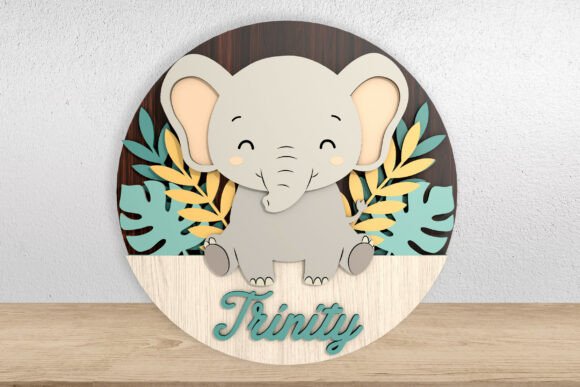
If you're looking to add a personal and artistic touch to a nursery, kids’ room, or baby shower gift, the Cute Elephant Name Sign File offers a charming and versatile solution. This 3D papercut design features a sweet baby elephant nestled among tropical leaves, with a dedicated space at the bottom for adding a custom name. It's a digital file set perfect for laser cutting machines like Glowforge, making it a favorite among hobbyists, small business owners, and creative parents alike.
However, while the Cute Elephant Name Sign File is visually appealing and well-suited for a variety of projects, there are some common pitfalls users encounter when purchasing, preparing, or using the file. Understanding these potential issues—and how to avoid them—can save time, reduce frustration, and ensure a professional-looking result.
Choosing the Right File Format
One of the first areas where users can run into trouble is selecting the correct file format. The Cute Elephant Name Sign File comes in a ZIP folder containing SVG, AI, DWG, EPS, DXF, and PDF files. While this offers flexibility, not every format is compatible with all software or cutting machines.
For example, Glowforge users typically work best with SVG or PDF files, while other machines may prefer DXF or AI. If you're using a different platform or have an older version of your design software, certain file types might not open correctly—or at all.
- Solution: Before purchasing, verify which file types your machine and software support. If you're unsure, reach out to the seller or consult your machine's manual.
- Tip: Test one of the included files with a free design tool like Inkscape or Adobe Illustrator before committing to a full cut.
Overlooking the Need for Design Customization
The Cute Elephant Name Sign File includes a designated area for adding a name, but some users assume they can simply type the name directly into the design without adjusting font size, spacing, or alignment. Unfortunately, this often leads to misaligned or oversized text that disrupts the overall aesthetic.
Additionally, some fonts may be too intricate or thin for laser cutting, especially in smaller sizes, which can result in parts of the name not cutting properly or being difficult to read after assembly.
- Always test your font choice at the intended size in your design software before cutting.
- Use fonts that are designed for laser cutting or engraving, which tend to have better stroke thickness and spacing.
- Adjust kerning and tracking to ensure even spacing and legibility.
Underestimating Material Thickness and Layer Alignment
This 3D papercut design is composed of multiple layers, which must be precisely aligned to create the intended depth and visual effect. However, many users don’t account for the material thickness when setting up their layers, especially when using thicker cardstock or acrylic.
Using materials that are too thin can cause the layers to warp or not hold their shape, while materials that are too thick may not fit together properly or could strain the laser cutter.
Best Practice: Choose a material thickness between 1.5mm and 3mm for optimal layering results. Always do a dry fit of the layers before gluing or assembling to check for alignment issues.
Misjudging the Complexity of the Design
The Cute Elephant Name Sign File is a multilayered design, which can be more complex than it initially appears. Some users—especially beginners—may underestimate the time required for assembly, especially if they're not experienced with papercraft or laser-cut projects.
Additionally, the delicate nature of the elephant’s features and the intricate leaf patterns can be easily damaged during removal from the cutting mat or assembly, especially if handled roughly.
- Use tweezers or a weeding tool to carefully remove small pieces from the cutting mat.
- Take your time with the layering process—use a small amount of glue and allow each layer to dry before moving on to the next.
- Consider laminating or sealing the final piece for added durability.
Not Previewing the Final Output
Many buyers jump straight into cutting without previewing the full design in their software. This can lead to unexpected surprises—like the name being cut off, the elephant appearing smaller than expected, or the overall dimensions not fitting the intended space.
Always use the preview function in your design software to check the full layout, especially after making any modifications. This helps avoid costly material waste and rework.
Pro Tip: Print a paper version of the design first to check proportions and layout before cutting your final material.
Assuming All Files Are Plug-and-Play
While the Cute Elephant Name Sign File is a well-designed product, it still requires some level of user knowledge. Some buyers expect to download the file, import it into their machine, and immediately start cutting—only to discover that adjustments are needed for scale, layer order, or cut settings.
Each laser cutter has different power and speed settings depending on the material. Failing to adjust these settings can lead to undercuts, burns, or incomplete cuts.
Recommendation: Start with a test cut on scrap material to fine-tune your machine settings before cutting the final design. Save your adjusted settings for future reference.
Ignoring the Need for File Updates or Support
Occasionally, digital files may be updated by the seller to fix issues or improve usability. However, many users download the file once and never check for updates. If there’s a known issue with layer alignment or text placement, an updated version might already exist.
Additionally, if you run into a problem with the file, don’t hesitate to reach out to the seller for support. Most digital creators are happy to assist and may provide helpful tips or updated files.
Final Thoughts
The Cute Elephant Name Sign File is a beautiful and customizable design that offers a lot of creative potential. Whether you're making a gift, personalizing a nursery, or expanding your product line, this file can help you achieve a professional look with the right approach.
By being mindful of file compatibility, material selection, design adjustments, and machine settings, you can avoid common mistakes and enjoy a smoother, more satisfying crafting experience. Take the time to prepare properly, and you’ll be rewarded with a stunning, personalized piece that stands out.